

Have you tried to upload a file to your Wordpress website only to encounter an error reading, "Sorry, this filetype is not permitted for security reasons?" If yes, then you ran into the same problem that I recently had when trying to upload an .AI (Adobe Illustrator) file. Wordpress prevents some of the unpopular file types for security reasons-and while I totally buy it, it is a pain in my arse.
After much research and inter web digging, I finally ran across a website that helped me out. I am sure that this is obvious to many people who know code, but I have no flipping' idea about anything dealing with that topic. The video was short, I couldn't make it full screen, and she did not tell me what steps to follow in Wordpress. A little diligence and a hail mary helped me figure it out for myself.
1. First of all, the code you will need to insert is below, so copy that to your clipboard.
 4. Paste the snippet of code at the top but under the <?php. I added a space between the first and last lines.
 Note: This snippet of code was for a .SVG file type. Since I wanted to upload .AI files, I needed to copy and paste the line that says,
function my_myme_types($mime_types){
    $mime_types['svg'] = 'image/svg+xml'; //Adding svg extension
    return $mime_types;
}
add_filter('upload_mimes', 'my_myme_types', 1, 1);

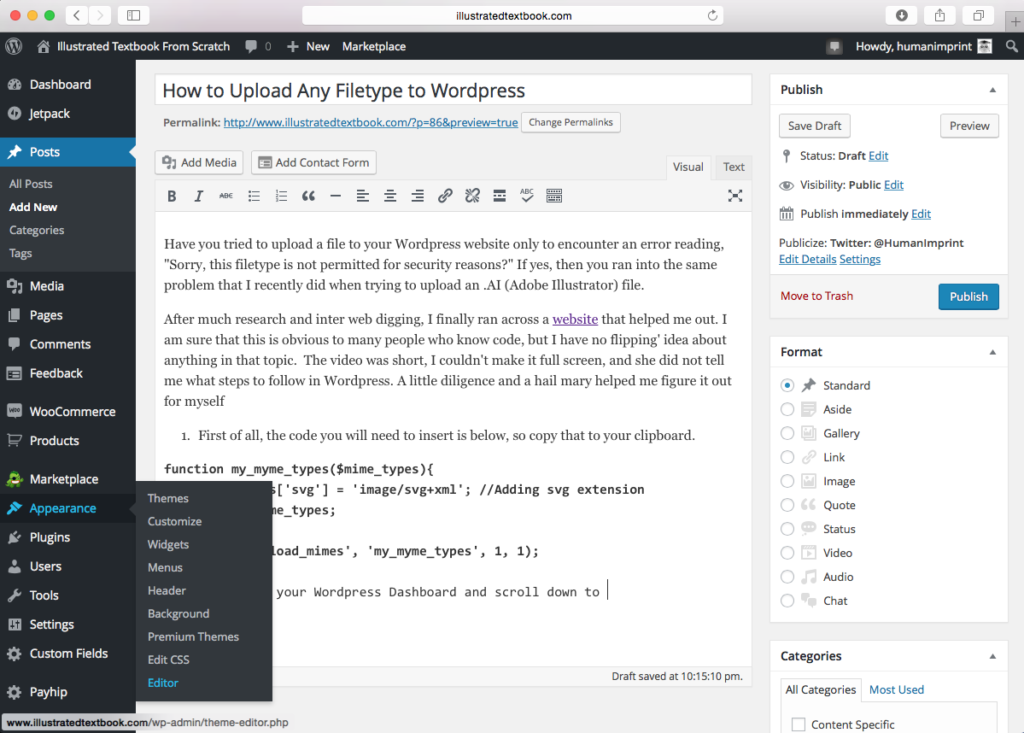
2. Next, go to your Wordpress Dashboard and scroll down to "Appearance" then to "Editor."
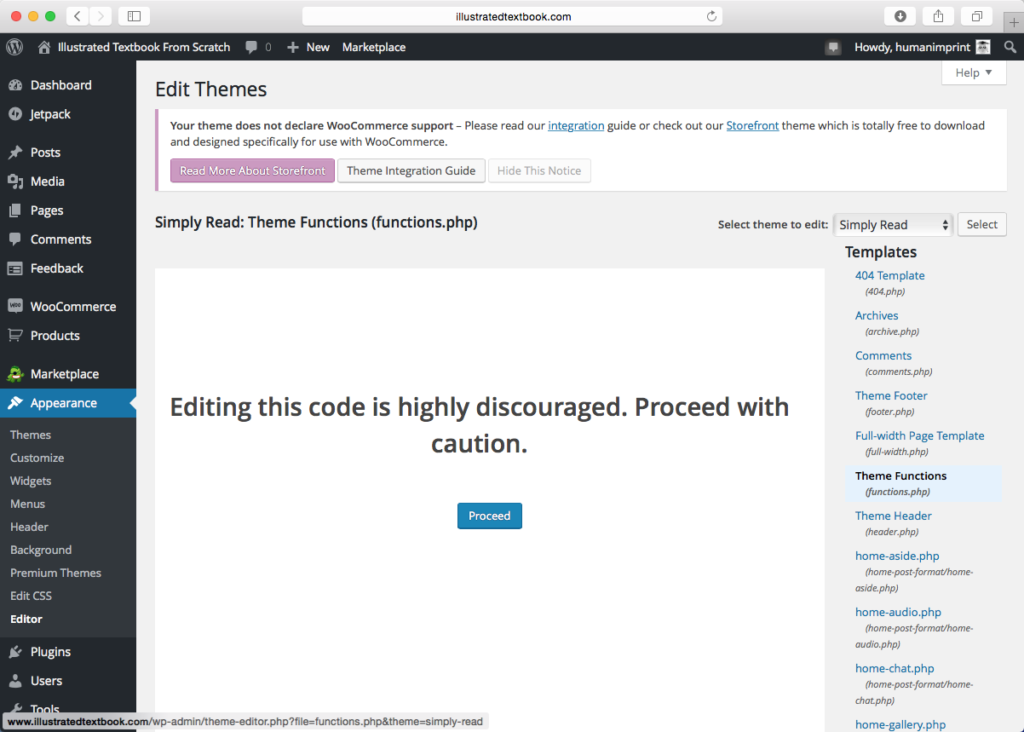
3. On the right hand side you will see a list of code pages to open-find the one that says, "Theme Functions (Functions.php)"Once you click on it, you will reach a scary page that tells you not to edit the code unless you REALLY, REALLY, REALLY know what you are doing. Go ahead and click it. :)
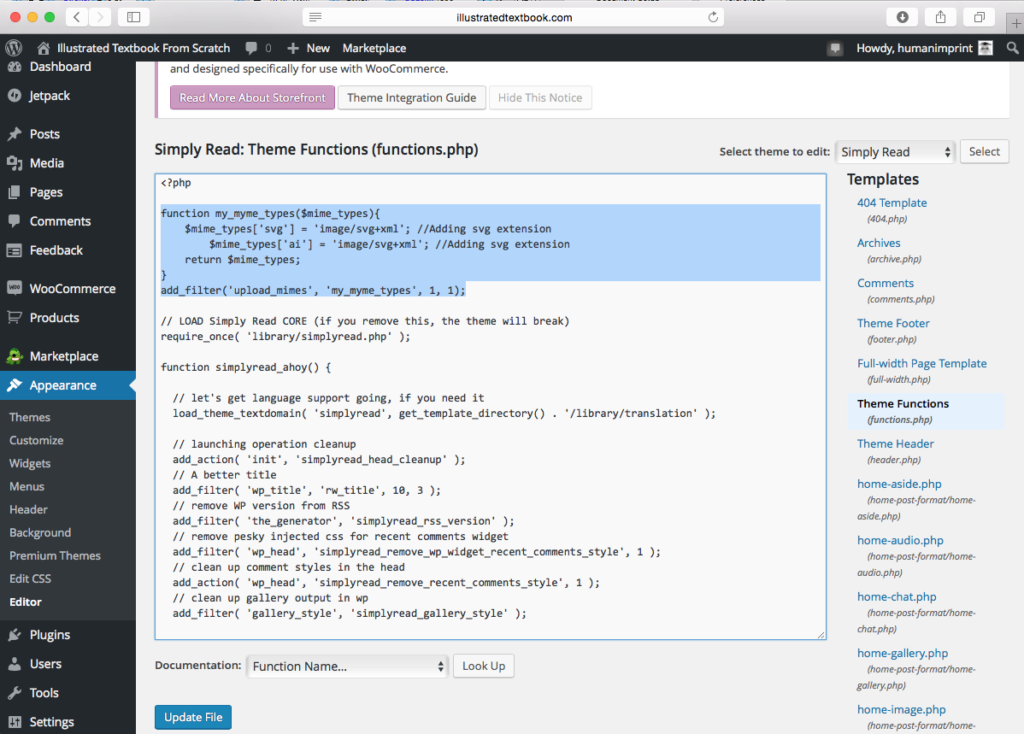
4. Paste the snippet of code at the top but under the <?php. I added a space between the first and last lines.
Note: This snippet of code was for a .SVG file type. Since I wanted to upload .AI files, I needed to copy and paste the line that says,
$mime_types['svg'] = 'image/svg+xml'; //Adding svg extension

and instead, I substituted ai anywhere it read svg. I would assume that you can keep doing this for any file type you need. You can see how I did it in the image above.

Once I followed these steps, I was able to upload my .AI file with no error. Let me know if it helped you too.
